

How to Create AI Images from Text: Best Free Tools & Prompt Tips (2026)
You want to create a stunning AI image from just a few words but have no idea where to begin. Maybe you have seen something incredible online and thought, how did someone make that? The technology has moved so fast that even people who were playing around with it twelve months ago have had to relearn what is possible. These are no longer blurry, weird-looking images. They are cohesive, stylized, sometimes genuinely beautiful, and they start with nothing but words.
Text-to-image AI tools let you type a description and generate a professional-quality image in seconds with zero design experience required. No Photoshop skills, no art degree, no expensive software. Just words, and a little bit of know-how about how to use them well. That feeling of equal parts inspiration and mild bewilderment is where most people’s journey begins, and this guide is the resource you wish someone had handed you on day one.
KEY INSIGHT: The gap between average and impressive AI image output almost always comes down to one thing: how well you communicate with the AI. Not technical knowledge. Not artistic training. Just language.
What Is Text-to-Image AI and Why It Actually Matters
Text-to-image AI models train on enormous datasets, hundreds of millions, sometimes billions, of image-text pairs. Through all that training, they learn the connections between visual concepts and language. Not just “dog equals fluffy animal,” but the way fur catches afternoon light, the framing conventions of portrait photography, and the exact color moods of impressionist paintings.
It is honestly a bit wild when you think about it. The model has absorbed more visual information than any human could look at in ten lifetimes, and now it puts that understanding to work every time you type a prompt.
How the Technology Actually Works
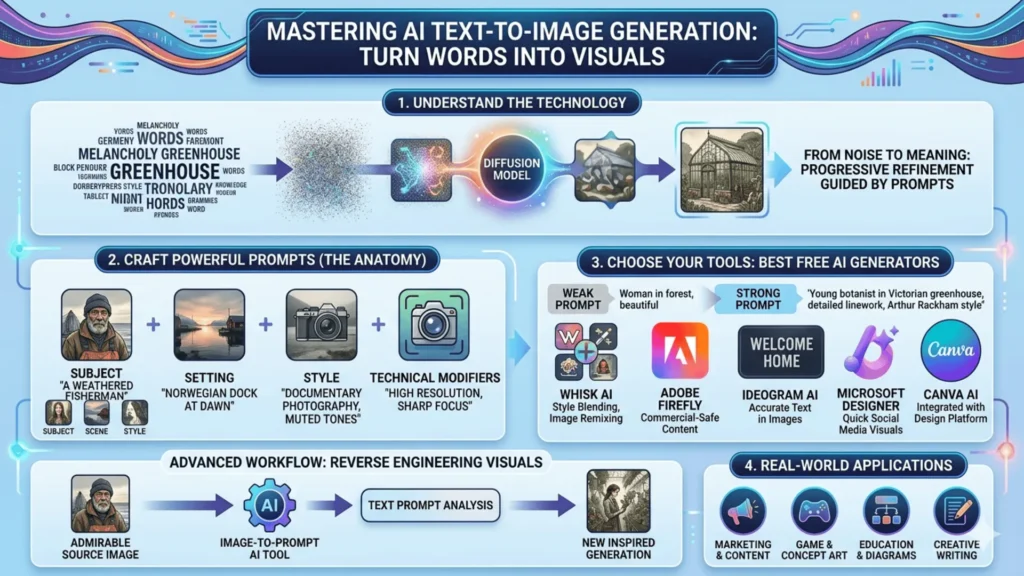
The dominant technique behind all of this is called diffusion. The model starts with pure visual noise, imagine static on an old television, and progressively removes that noise in ways your text prompt guides. Think of it less like drawing from a blank canvas and more like sculpting: you start with chaos and work your way toward something meaningful.
What catches people off guard is how sensitive the whole process is to the specific words you choose. Swap “melancholy” for “somber” in a prompt and the output shifts in ways you would not predict. The model is not guessing at your intentions; it is reading your words literally and doing its best with them.
FACT: “A golden retriever sitting in a park” and “a golden retriever resting lazily in autumn sunlight” produce noticeably different AI-generated results. Word choice matters enormously.
That sensitivity is exactly why learning to write good prompts is worth your time. The technology handles all the heavy lifting. Your only job is to give it clear, specific direction, and that is a skill anyone can learn.
Meet Whisk AI: Google’s Visual Remix Approach
Most text-to-image tools hand you a blank text box and expect you to conjure your entire vision from scratch. If you have a clear idea and the vocabulary to describe it, great. If not, you are stuck staring at a cursor. Whisk AI, developed by Google Labs, takes a much more forgiving approach.
Instead of relying purely on text, Whisk lets you input images as references across three categories: subject, scene, and style. Drop in a photo of your cat as the subject, a moody forest image as the scene, and a vintage oil painting as the style reference. Whisk pulls them together into a coherent new image, using Gemini to interpret the visual inputs and Imagen 3 to generate the final result.
Here is a real example of how this plays out in practice. A designer was building a children’s book character and had a rough pencil sketch, a woodland setting reference, and a picture book she loved the color palette of. Rather than spending an hour trying to describe all of that in words, she fed all three images into Whisk and started iterating from there. Ten minutes later, she had something she could actually work with.
What Makes Whisk Different from Other Generators
The real power is not just that Whisk accepts image inputs; it is how images and text work together inside the tool. You use images for the things that are genuinely hard to put into words, like mood, style, and composition. Then you use text to fill in the specific details that images cannot convey, like “add a crescent moon” or “make it feel like winter.” Most tools treat images and text as alternatives to each other. Whisk treats them as partners.
REAL-WORLD RESULT: What would have taken an hour of prompt engineering took about ten minutes using Whisk AI’s image-blending approach.
How to Write Prompts That Actually Work
Here is something that surprises almost everyone when they first start using AI image generators: longer prompts do not automatically mean better results. You can spend twenty minutes crafting an elaborate, detailed description and get a worse image than someone who wrote six precise words. It feels backwards, but it is true.
The real skill is not describing everything; it is knowing which details actually matter. Think of it as strategic specificity: you want to be precise about the things that shape the image most, and let the AI fill in the rest.
The Anatomy of a Strong AI Image Prompt
Effective prompts for text-to-image AI generation include four layers that build on each other:
- Subject: The central focus, described specifically (“a weathered fisherman in his 60s”)
- Setting/Context: Where and when (“standing at a fog-covered Norwegian dock at dawn”)
- Style/Aesthetic: The visual language (“documentary photography, natural light, muted tones”)
- Technical modifiers: Quality signals (“high resolution, sharp focus, cinematic framing”)
COMBINED EXAMPLE: “A weathered fisherman in his 60s standing at a fog-covered Norwegian dock at dawn, documentary photography style, natural light, muted tones, high resolution, cinematic framing.”
Of these four layers, the style layer tends to do the most heavy lifting. Naming an art movement, a photography technique, or even just a time period gives the AI a rich visual framework to work within. It does far more work than piling on adjectives like “beautiful” or “stunning.”
Before and After: A Real Prompt Comparison
Weak prompt: “A woman in a forest, beautiful, magical” Result: Generic, softly lit fantasy figure. Technically fine, completely forgettable.
Strong prompt: “A young botanist in a Victorian-era greenhouse, surrounded by enormous ferns, warm amber lamplight, illustrated in the style of Arthur Rackham, detailed linework, editorial illustration” Result: Distinctive, atmospheric, genuinely useful as concept art.
Same core idea, two very different outcomes. The weak prompt uses words the AI has seen so many millions of times that they have lost almost all directional power. The strong prompt gives it something specific to latch onto, and the result reflects that immediately.
KEY FACT: Words like “beautiful” or “magical” have become almost meaningless for directing AI output. Style anchors and specific environmental detail make the real difference.
Common Prompt Mistakes to Avoid
- Being too abstract: “Beautiful art” gives the model almost nothing concrete to work with
- Contradicting yourself: “A dark, bright scene” forces the model to pick one and guess poorly
- Skipping the negative prompt: Most tools let you specify what to exclude. “No watermarks, no text, no blurry backgrounds” can clean up output significantly
- Forgetting aspect ratio: Landscape versus portrait versus square all serve different uses. Specify it.
- Overloading with adjectives: More is not always better. Clean, direct prompts often outperform lengthy ones.
Free Tools for AI Image Generation from Text
If you are not ready to pay for a subscription yet, the good news is the free options right now are genuinely impressive. A year ago that was not really true. Today it is.
| Tool | Best For | Text-in-Image | Beginner-Friendly | Free Access |
|---|---|---|---|---|
| Whisk AI | Style blending, image remixing | Limited | Very high | Yes |
| Adobe Firefly | Commercial-safe content | Good | High | Limited (credits) |
| Microsoft Designer | Quick social media visuals | Strong | High | Yes |
| Ideogram AI | Images with accurate embedded text | Excellent | Medium | Yes |
| Canva AI | Brand-consistent content | Moderate | Very high | Limited |
IDEOGRAM TIP: If you have ever tried to get another generator to produce an image with readable text in it, a poster, a book cover, a sign, and gotten back a jumble of convincing-looking gibberish letters, Ideogram solves that problem better than anything else currently free. Bookmark it for that use case alone.
Getting Creative: Beyond Basic Text Prompts
Once you have got the basics down, there is one technique that tends to accelerate people’s learning faster than anything else: using image-to-prompt AI tools to reverse engineer visuals you admire. It sounds a bit nerdy, but it is genuinely useful and kind of fun once you try it.
Using Image-to-Prompt AI to Reverse Engineer Great Visuals
Tools like CLIP Interrogator or img2prompt take an existing image and generate a text description that could recreate something similar. The output is not always pretty prose; it often reads like a long string of descriptive tags. But what it gives you is the actual vocabulary that AI models connect to certain visual qualities, and that is incredibly useful.
Here is a simple workflow to try it yourself:
- Find an image with an aesthetic you want to replicate (a piece of concept art, a film still, a painting).
- Run it through an image-to-prompt AI tool.
- Take the output, clean it up, and use it as the style layer of your own prompt.
After doing this a few times, you start to understand why certain words trigger certain visual responses. That understanding sticks with you and makes every prompt you write afterward sharper and more intentional.
NOTE: This technique is closer to studying reference material than copying. You are not reproducing the image; you are learning the grammar of the language.
Real-World Uses for AI-Generated Imagery
The practical applications for this technology are broader than most people realize when they first start playing around with it. It is not just for artists or designers. Real people with regular jobs are saving serious time with these tools every week.
- A freelance marketer uses free AI image generators from text to produce custom header images for every blog post her clients publish, saving roughly 3 to 4 hours of stock photo hunting per week.
- An indie game developer uses Whisk AI during pre-production to create character and environment concepts, not as final assets, but as a shared visual language so the whole team is pointing in the same direction before development begins.
- Teachers create custom diagrams and illustrations that textbooks simply do not have, tailored exactly to the lesson they are trying to teach.
- Writers visualize characters and scenes to sharpen their descriptions, which sounds like a small thing until you actually try it and realize how much it helps.
- Personal use including custom artwork for homes, personalized gifts, and creative projects shows how accessible these tools have become for anyone, regardless of budget or background.
Frequently Asked Questions (FAQs)
Today, we will discuss the most popular questions that can be used to test a friendship. Here are the comprehensive details:
Where This Is All Going
Text-to-image AI is genuinely one of those technologies that moves faster than our ability to fully absorb what it means. What feels impressive today will probably look modest in twelve months. That is not a reason to hold back though; it is a reason to start now, while the learning curve is still manageable and the best tools are still free.
Whisk AI and tools like it point toward an interesting direction for where this is all heading: less about replacing creative skill, more about making visual creation accessible to people who never had a path into it before. That feels like a genuinely good thing.
PRACTICAL ADVICE: Start with something specific you actually want to see. Not a test prompt. Not “a cat on a beach” to see what happens. An image you would actually use, for a project, a post, a wall in your home. That concrete motivation will push you to refine your prompts more than any tutorial can.
Somewhere in that process of trying and adjusting and trying again, you will develop a real feel for this strange new visual language. It takes a little time, but it clicks. And once it does, the tools will only keep getting better.


