

How to Enhance and Upscale Images with AI: A Complete Guide 2026
Have you ever found the perfect image for a project, only to realize it is too blurry, soft, or pixelated to actually use? We have all been there. You try tweaking the sharpness or clarity in a standard photo editor, but the image just ends up looking harsh, crunchy, and distorted. Traditional editing tools simply cannot create detail out of thin air. That is exactly where artificial intelligence steps in.
AI image enhancement tools, such as Whisk AI, offer a revolutionary fix for low-resolution media. They do not just stretch or rearrange existing pixels. Instead, they intelligently analyze the picture and generate missing details to transform blurry photos into crisp, high-quality assets in mere seconds. You do not even need any advanced editing skills to make it happen.
This complete guide will walk you through exactly how these models work, which specific tools are worth your time, and the step-by-step process to get the absolute best results from your images.
Part 1: How AI Image Enhancement Actually Works
Why Traditional Sharpening Fails
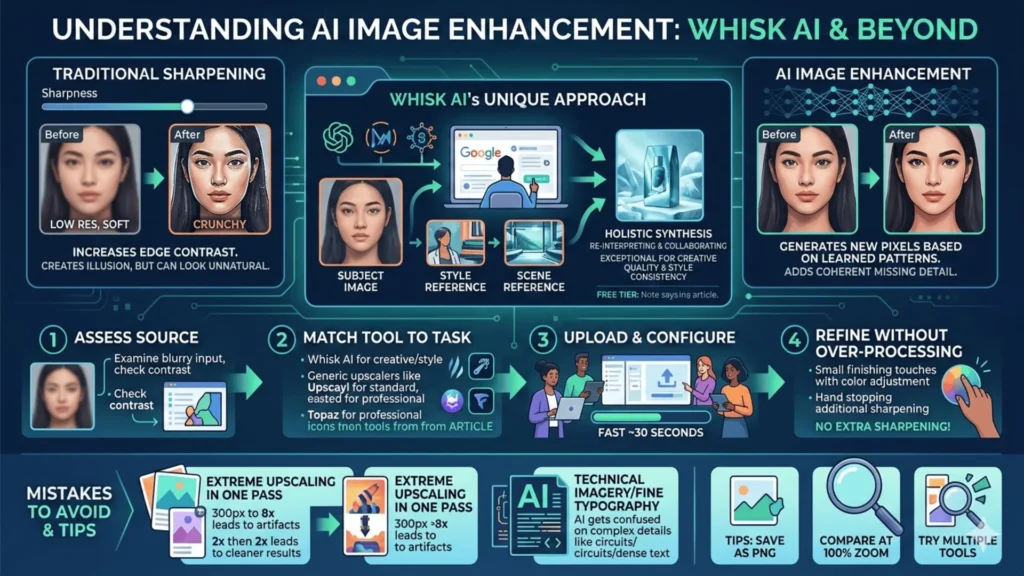
Most people’s first instinct when an image looks blurry is to sharpen it. It seems logical. However, sharpening in conventional editors does not recover lost detail. It simply increases contrast along the edges to create the illusion of sharpness. If you push it too far, you get those telltale white halos, over-saturated edges, and an over-processed look that immediately reads as amateur.
What AI Does Instead
AI image quality improvement takes a fundamentally different approach. Instead of manipulating existing pixels, AI models generate new ones based on learned patterns.
- When you upscale an image of a face using AI, the model is not guessing randomly.
- It applies a statistically informed understanding of how facial features, skin texture, and lighting interact at higher resolutions.
- The result is added detail that feels coherent and natural, rather than invented.
Important Note: AI enhancement is not perfectly lossless. The model makes interpretive decisions. For real-world photographs, those decisions are usually excellent. For heavily stylized or AI-generated source images, the results can sometimes get strange because those images have different statistical patterns. It is a genuine limitation to keep in mind.
Part 2: What Makes Whisk AI Different
Whisk AI, Google’s image generation and transformation tool, occupies an interesting position in the AI image improvement landscape. Most dedicated upscalers have one simple job: take an image and make it bigger and sharper. Whisk takes a much more holistic approach.
Rather than feeding it a text prompt, you give Whisk images as inputs. You can provide a subject image, a style reference, or a scene reference. The AI then synthesizes them into something new. It does not just add resolution; it re-interprets the image with a more complete understanding of what it is supposed to look like. Think of it less as a basic upscaler and more as an AI image collaborator.
Whisk AI’s Best Use Cases:
- Creative and design work: When you want the enhanced version to feel intentional and artistic, not just technically larger.
- AI-generated images: When they need a second pass to add more coherent, realistic detail.
- Style-consistent outputs: When visual coherence across an entire project matters more than pure resolution gain.
(Note: If you simply want to make a standard product photograph sharper for an e-commerce listing, a dedicated upscaler might be the more straightforward choice.)
Part 3: Step-by-Step Guide to Improving Image Quality
The specific interface varies slightly by tool, but the fundamental workflow holds true across most AI platforms.
Step 1: Assess Your Source Material First
Look honestly at your source image. AI tools amplify what is there, both good and bad. A 600px image with reasonable contrast will upscale much better than a 600px image that is poorly exposed and slightly motion-blurred. Always start with the highest-resolution version you can find, whether that is a RAW file, an original export, or an uncompressed backup.
Step 2: Match the Tool to the Task
Different AI enhance tools are built with entirely different priorities. Here is a practical breakdown to help you choose:
| Tool | Best For | Free Tier | Upscale Max |
| Whisk AI | Creative, style-guided enhancement | Yes | 2-4x |
| Upscayl | Photography, offline processing | Fully free | 4-8x |
| Let’s Enhance | Web-based, quick upscaling | Limited | 16x |
| Topaz Gigapixel AI | Professional photography and print | Paid | 6x |
| Adobe Firefly | Adobe workflow integration | Limited | 4x |
Step 3: Upload, Configure, and Run
If you are using Whisk AI specifically, the workflow is incredibly simple:
- Open Whisk and upload your base image as the main subject.
- Optionally add style or scene references to guide the AI’s creative interpretation.
- Click generate (the model typically returns your finished results in under 30 seconds).
- Download the file and compare your output against the original at 100% zoom.
Step 4: Refine Without Over-Processing
Your AI-enhanced image will likely need a very light finishing pass. You might need to adjust the white balance, pull back slightly over-saturated areas, or crop the frame. Resist the urge to sharpen the image again. The AI has already added the necessary sharpness. Stacking more sharpening on top will create harsh halos and artificial-looking edges. Less is definitely more at this final stage.
Part 4: Best Practices & Common Pitfalls
The Mistakes That Actually Hurt Your Results
- Jumping straight to extreme upscaling: Going from 300px to 8x in one massive pass often introduces weird artifacts. Instead, try staged passes (like doing a 2x upscale followed by another 2x upscale) for significantly cleaner results.
- Ignoring subject matter compatibility: AI models handle faces, nature, and architecture beautifully. However, highly technical imagery like circuit boards or dense typography can easily confuse the AI’s pattern-matching algorithms.
- Treating AI output as final: The AI gives you an incredibly strong starting point. However, the human step of judging whether something looks visually correct is what separates good results from great ones.
Quick Tips for Better AI Upscaling Results
- Save your output as a PNG whenever possible to preserve more detail than a compressed JPEG.
- Do not apply extra sharpening after the enhancement is complete.
- Compare at 100% zoom, rather than thumbnail size, to see the actual quality differences.
- Try multiple tools on the exact same image to see which specific AI model handles your image type best.
Part 5: Free vs. Paid AI Image Enhancement
The honest truth might surprise you: for most individual use cases, free AI image enhancement tools are more than capable of getting the job done.
- Whisk AI’s free tier provides real, meaningful access for creative upscaling.
- Upscayl is completely free, open-source, and has zero usage limits for standard photo processing.
Where paid tools (like Topaz Gigapixel AI) truly earn their cost is in scale and granular control. If you need to batch-process hundreds of e-commerce photos consistently, or prepare massive files for large-format printing with strict technical precision, paid software is usually required. But for personal use, individual projects, or simply testing the waters? Always start free.
Frequently Asked Questions (FAQs)
Today, we will discuss the most popular questions that can be used to test a friendship. Here are the comprehensive details:
Conclusion: The Bigger Picture
AI image enhancement has matured incredibly fast. The tools available now, many of which are completely free, would have been considered absolute magic just a few short years ago. Platforms like Whisk AI, Upscayl, and a handful of others have democratized what was once a highly expensive, skill-dependent workflow.
Remember, the technology is your collaborator, not a total replacement for your own visual judgment. Start with the best possible source file, choose a tool matched to your specific needs, and never skip the light finishing pass at the end. The results are genuinely impressive, and the learning curve is much shorter than you might think.


